Below are the brief steps for setting up your OAF Environment:
- Downloading correct version of JDeveloper for your EBS version
- Setting up the environment variable JDEV_USER_HOME
- Coping the .dbc file of your EBS environment in JDEV_USER_HOME\dbc_files\secure folder
- Creating database connection in JDeveloper
- Creating OA Workspace in JDeveloper
OA Framework: How to Identify Required Oracle JDeveloper Patches For Oracle E-Business Release 12.x or 11i (Doc ID 416708.1)
If you are not able to open this Doc Id, simply search it in the knowledge base.

SELECT
applications_system_name,
aru_release_name,
release_name
FROM
apps.fnd_product_groups
Output:

I have the EBS version 12.2.4, so I will download the Patch 19170592

Once you have downloaded the patch, unzip it in any directory, like C:\JDeveloper

Create one environment variable JDEV_USER_HOME with below value, as this directory will contain all the project files:
C:\JDeveloper\jdevhome\jdev


Copy .dbc file of your instance in the below directory:
C:\JDeveloper\jdevhome\jdev\dbc_files\secure
Open JDeveloper and create database connection. jdeveloper.exe will be present in C:\JDeveloper\jdevbin
Open connection navigator:
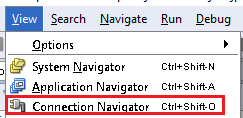
Right click Database folder and select New Database Connection:
folder and select New Database Connection:
Click Next button:

Enter the connection name:

Enter the EBS database username and password of apps DB user:

Enter the database connection details and click Next button. Use only the SID, don't use service name:

Click on Test Connection button and click Next button:

Click on Finish button:

Connection will be added:

In Applications Navigator, right click Applications and select New OA Workspace:

Give any File Name and click OK button. This will be our workspace file (.jws) :

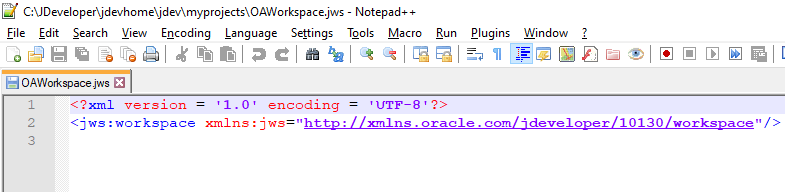
New OAWorkspace.jws file will be created:
Below wizard will appear, Click Next button:

Give any name to project and click Next button:

You can also give Default Package, like:
oracle.apps.<application_short_name>.<component>.<subcomponent>.webui
Here, I have given oracle.apps.cie where cie is application name. All the OAF files will now be located at $JAVA_TOP/oracle/apps/cie folder
Click on Use Repository for Design Time and select your DB connection. Click Next button then:

DBC File Name: Choose the .dbc file which you had copied in C:\JDeveloper\jdevhome\jdev\dbc_files\secure folder:

User Name: This will be the EBS Application user name (FND_USER.USER_NAME)
Password: This will be the EBS Application user password for the above user name
Application Short Name and Responsibility Key: This will be the application short name and responsibility key of any responsibility which is assigned to the above user. For example, if user has responsibility Application Developer, then you will use:
Application Short Name: FND
Responsibility Key: APPLICATION_DEVELOPER
Use the below query to find these values:
--Get Responsibilities assigned to the user
SELECT
fu.user_name "User Name",
frt.responsibility_name "Responsibility Name",
furg.start_date "Start Date",
furg.end_date "End Date",
fr.responsibility_key "Responsibility Key",
fa.application_short_name "Application Short Name"
FROM
apps.fnd_user_resp_groups_direct furg,
apps.fnd_user fu,
apps.fnd_responsibility_tl frt,
apps.fnd_responsibility fr,
apps.fnd_application_tl fat,
apps.fnd_application fa
WHERE
furg.user_id = fu.user_id
AND furg.responsibility_id = frt.responsibility_id
AND fr.responsibility_id = frt.responsibility_id
AND fa.application_id = fat.application_id
AND fr.application_id = fat.application_id
AND frt.language = userenv('LANG')
AND upper(fu.user_name) = upper('XXXXX') -- <change it>
AND (furg.end_date IS NULL OR furg.end_date >= TRUNC(SYSDATE))
ORDER BY
frt.responsibility_name
Click on Finish button:

Project will be created and now we can start working in this:


Right click project (OAProject) and select Project Properties:

All the Business Components will be using Dev connection as we selected that while creating the project. In case you need to change the DB Connection for Business Components use the below setting:

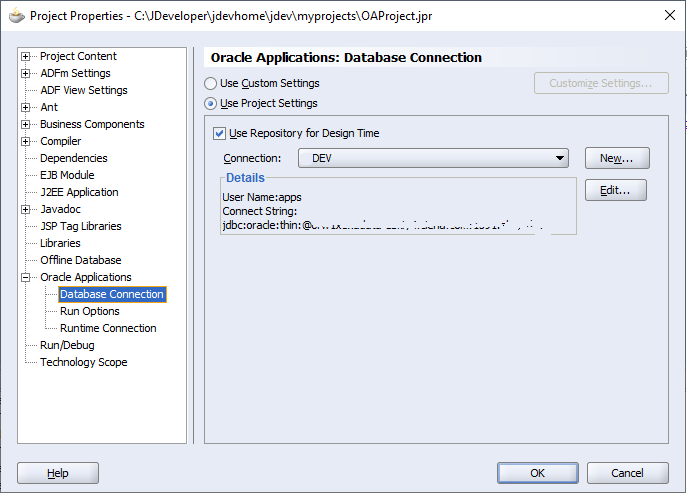
Use the below setting to change .dbc file location, application username/password and responsibility details:

Comments
Post a Comment